In the src/routes folder, create a +layout.js. In this file, we check if the environment is the browser, and initialize PostHog if so. You can get both your API key and instance address in your project settings.
routes/+layout.js
importposthogfrom'posthog-js'
import{ browser }from'$app/environment';
exportconstload=async()=>{
if(browser){
posthog.init('<ph_project_api_key>',{
api_host:'https://us.i.posthog.com',
defaults:'2025-11-30',
})
}
return
};
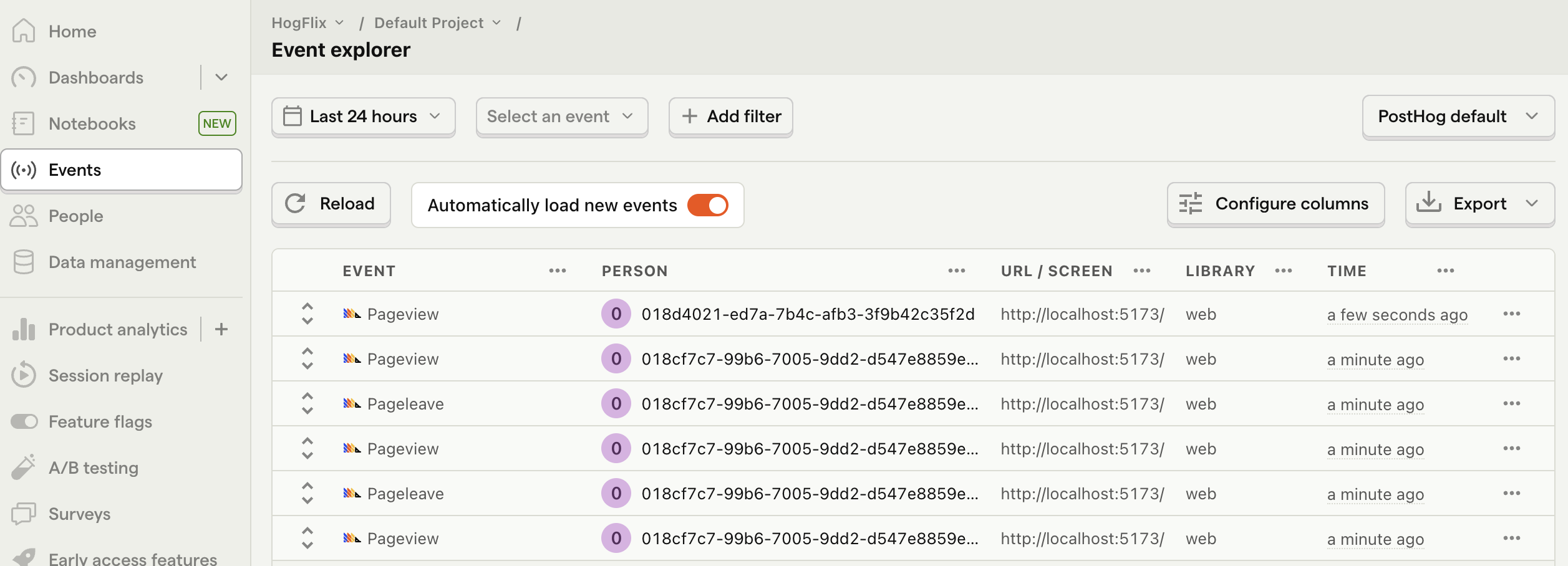
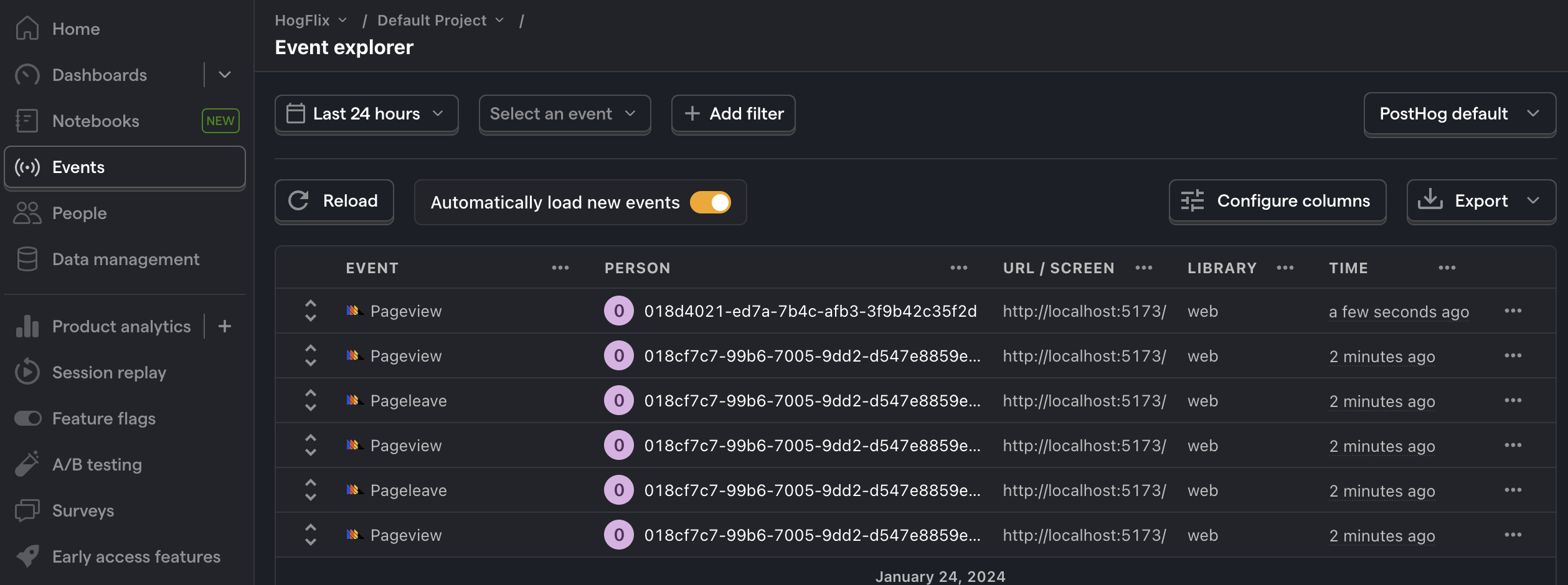
Once you’ve done this, reload your app and click the button a few times. You should see events appearing in the PostHog events explorer.
3. Create a survey
There are two options for displaying a survey using PostHog:
Use PostHog's prebuilt survey UI.
Implement your own survey UI.
This tutorial will cover how to implement both options:
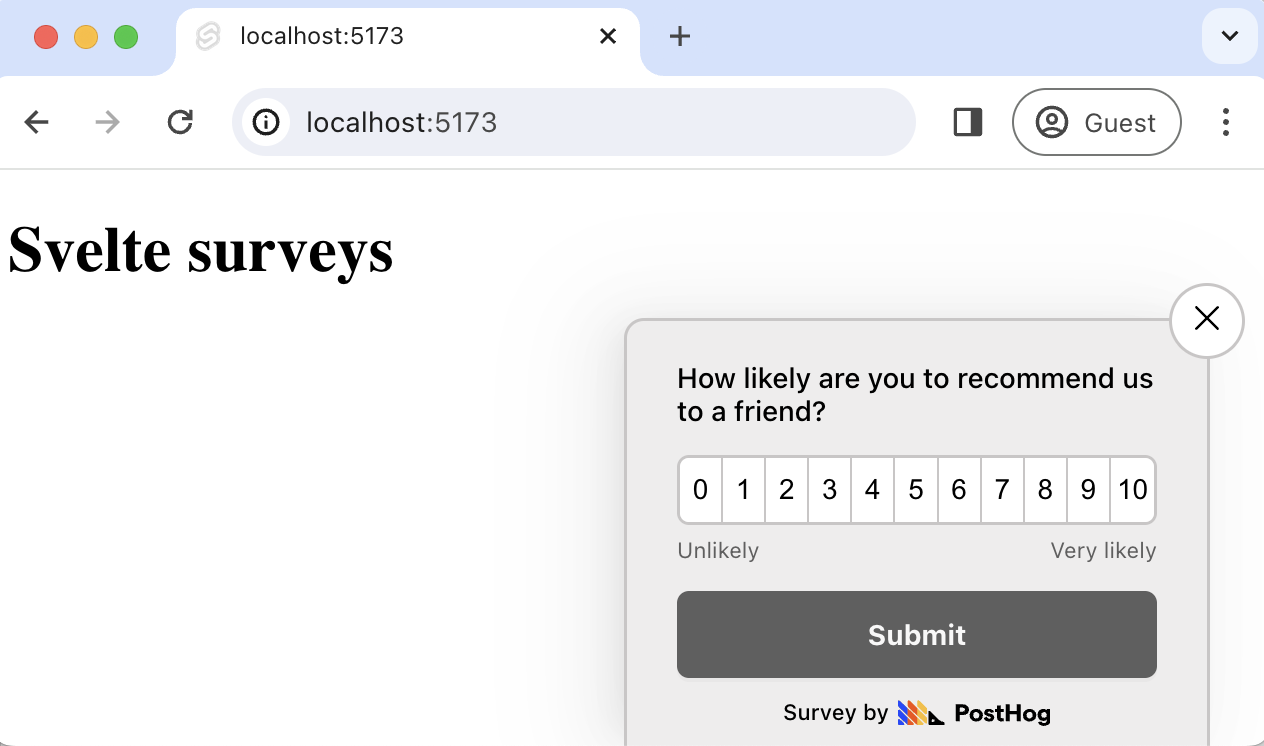
Option 1: Use PostHog's prebuilt survey UI
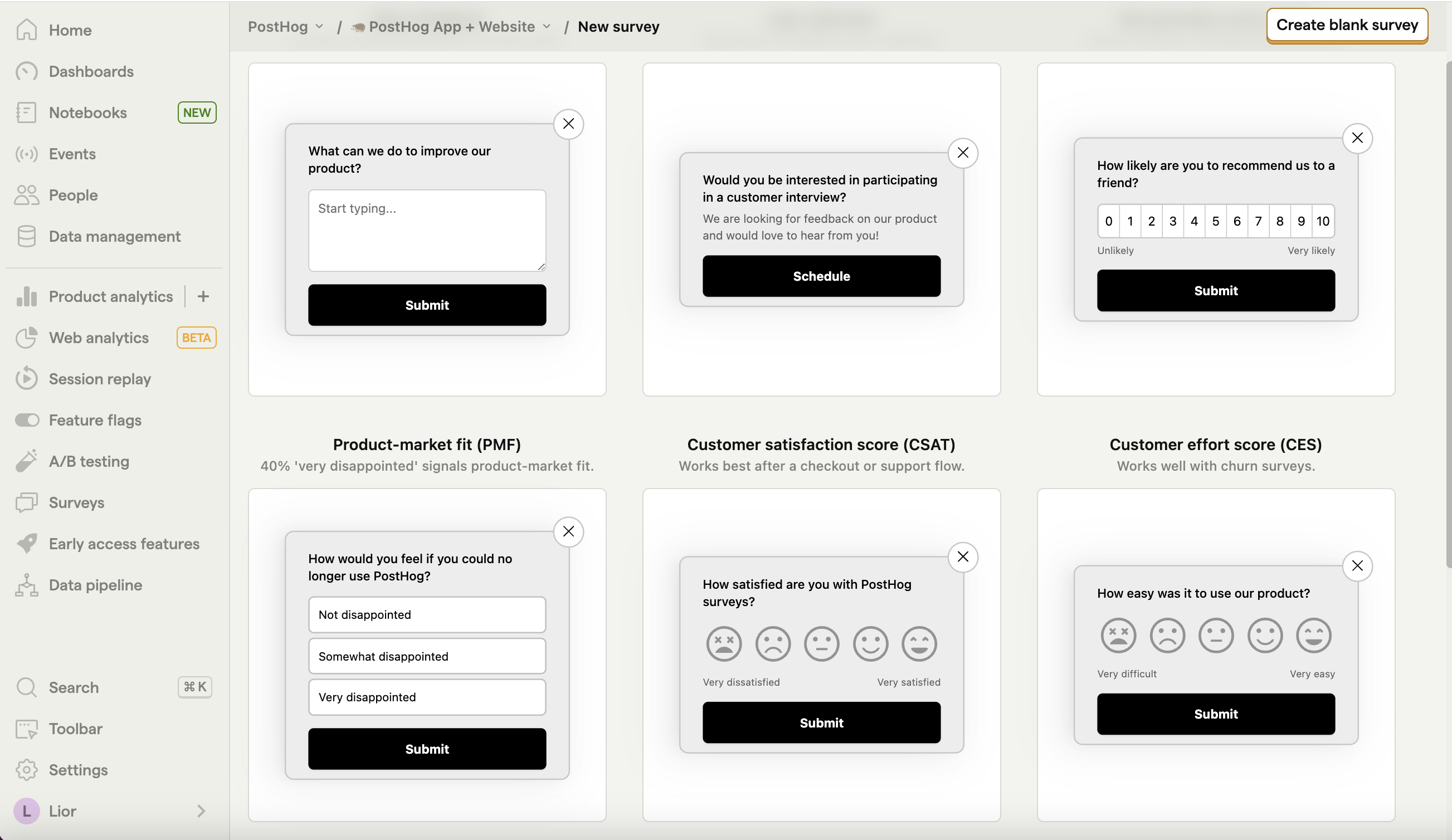
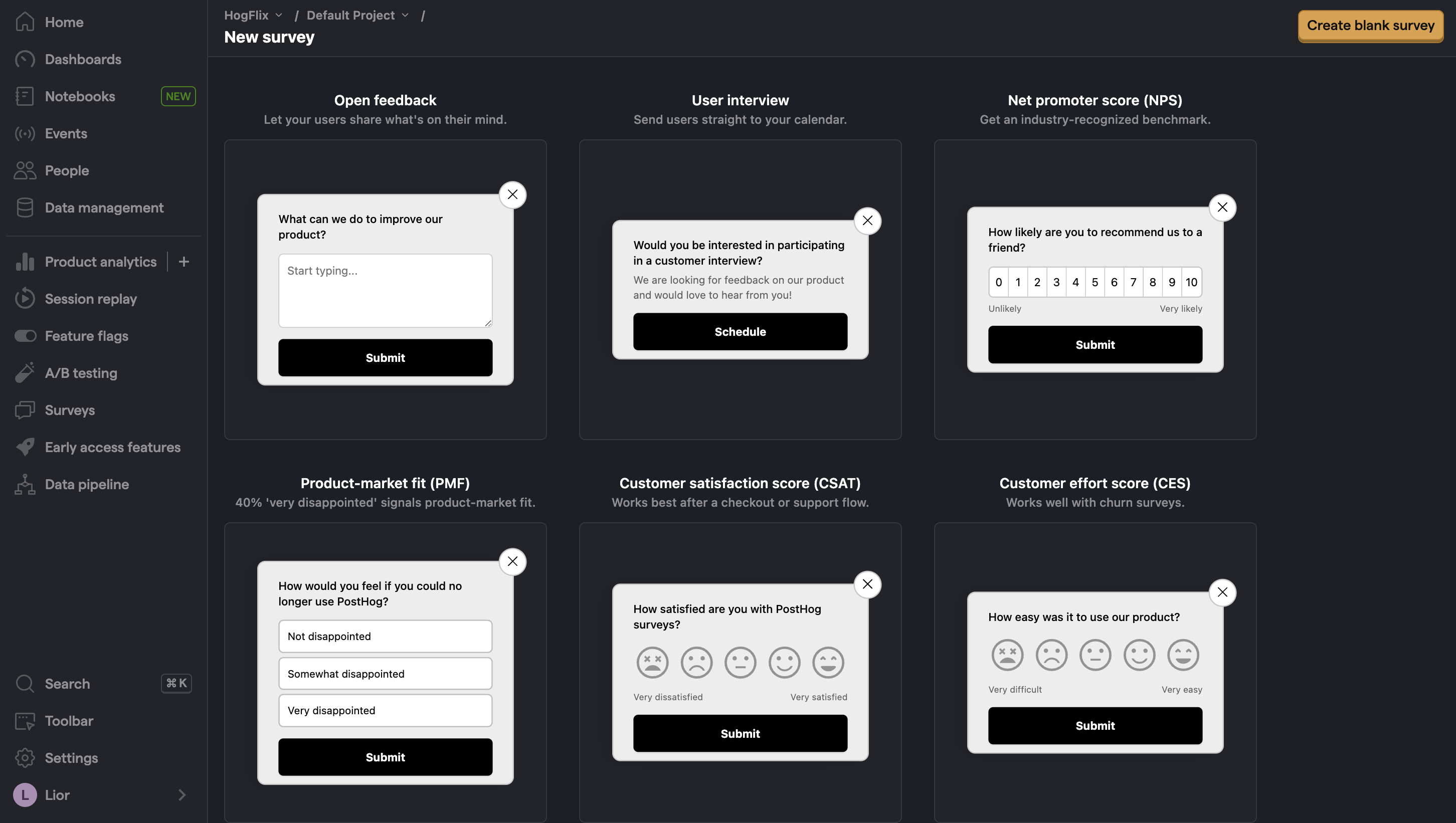
This is the simplest option. PostHog has a variety of survey templates to choose from, and handles all the display logic and response capture for you. You can also customize the questions, branding, and display conditions as needed – see our survey docs for more details on how to do so.
To create a survey with a prebuilt UI, go to the surveys tab in PostHog and click "New survey".
Select any template, or you can create your own by clicking "Create blank survey". Then, configure your survey with the following details:
Ensure Presentation is set to Popover.
Set the display conditions to All users.
Use the default values for everything else.
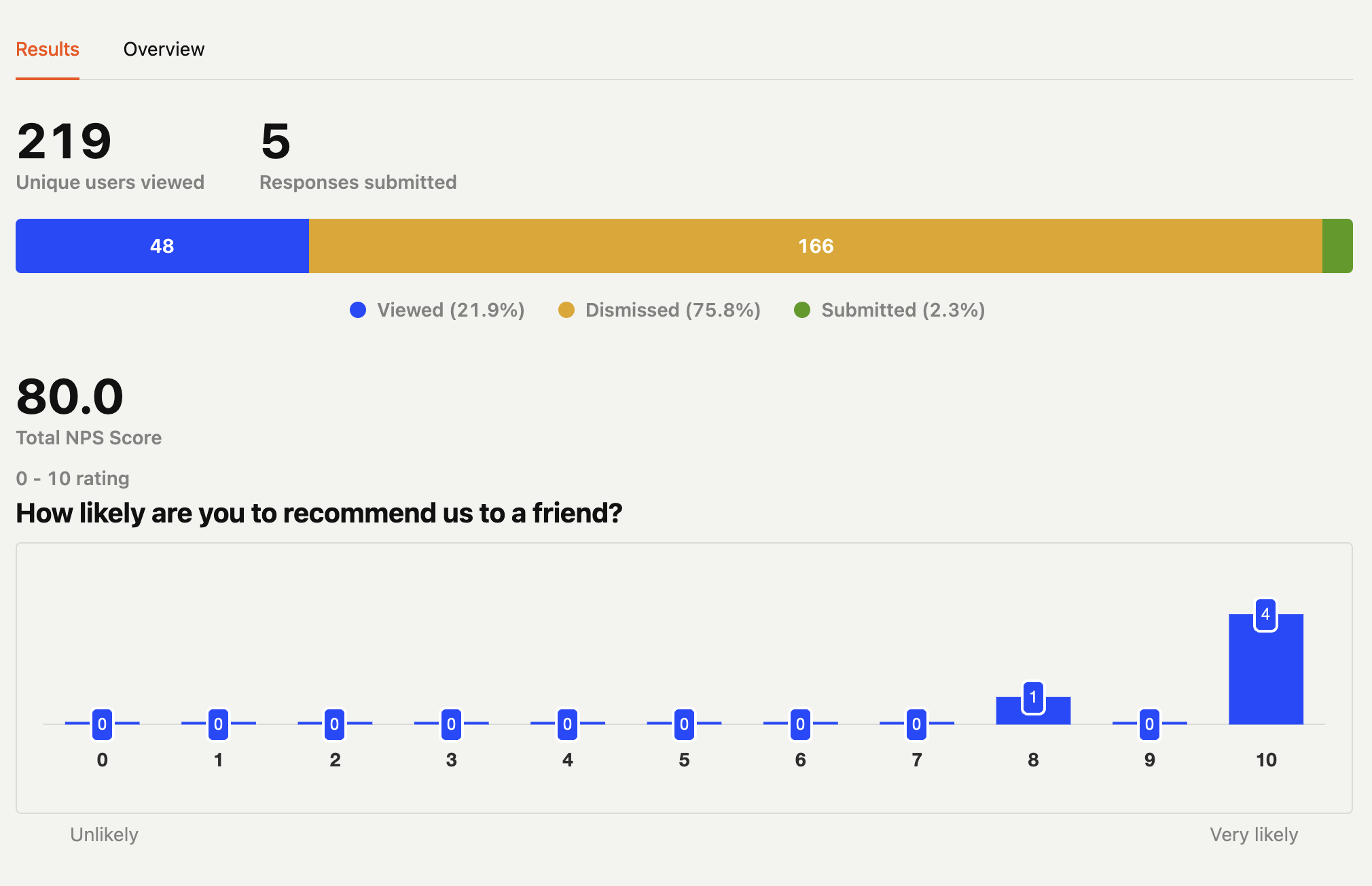
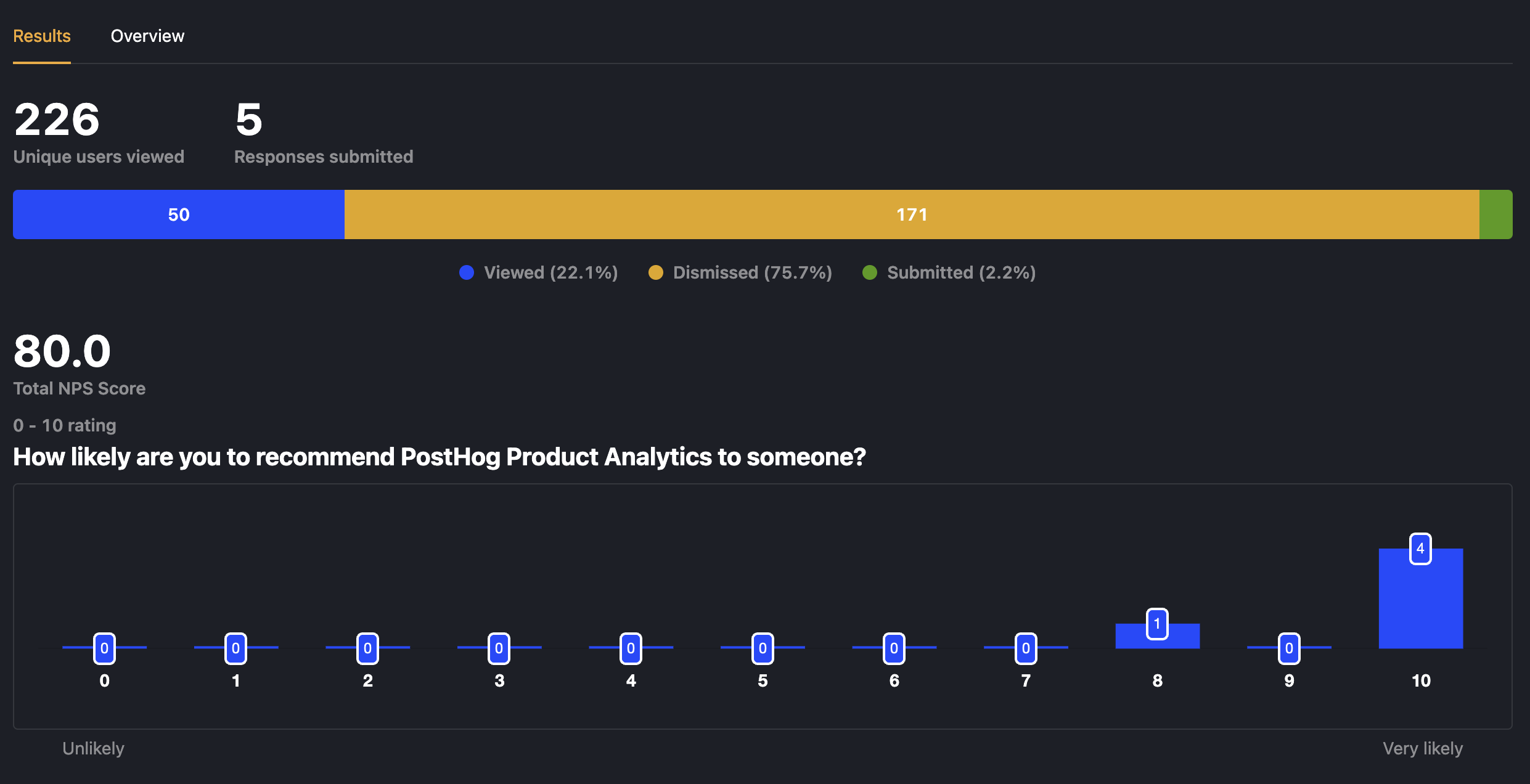
Then, click "Save as draft" and then "Launch". Your survey is now live and you should see it in your app. After submitting responses, you can view results in PostHog.
Option 2: Implement your own survey UI
If you prefer to have complete control of your survey UI and logic, you can still use PostHog to keep track of and analyze your results.
First, create a survey in PostHog like in option 1 above (for this tutorial, we use a Net Promoter Score survey template). The only difference is you must set Presentation to API.
Then, there are four parts to adding code for our custom survey:
Create the survey UI.
Fetch the survey from PostHog.
Add the logic for displaying and hiding it.
Capture interactions from it.
1. Create the survey UI
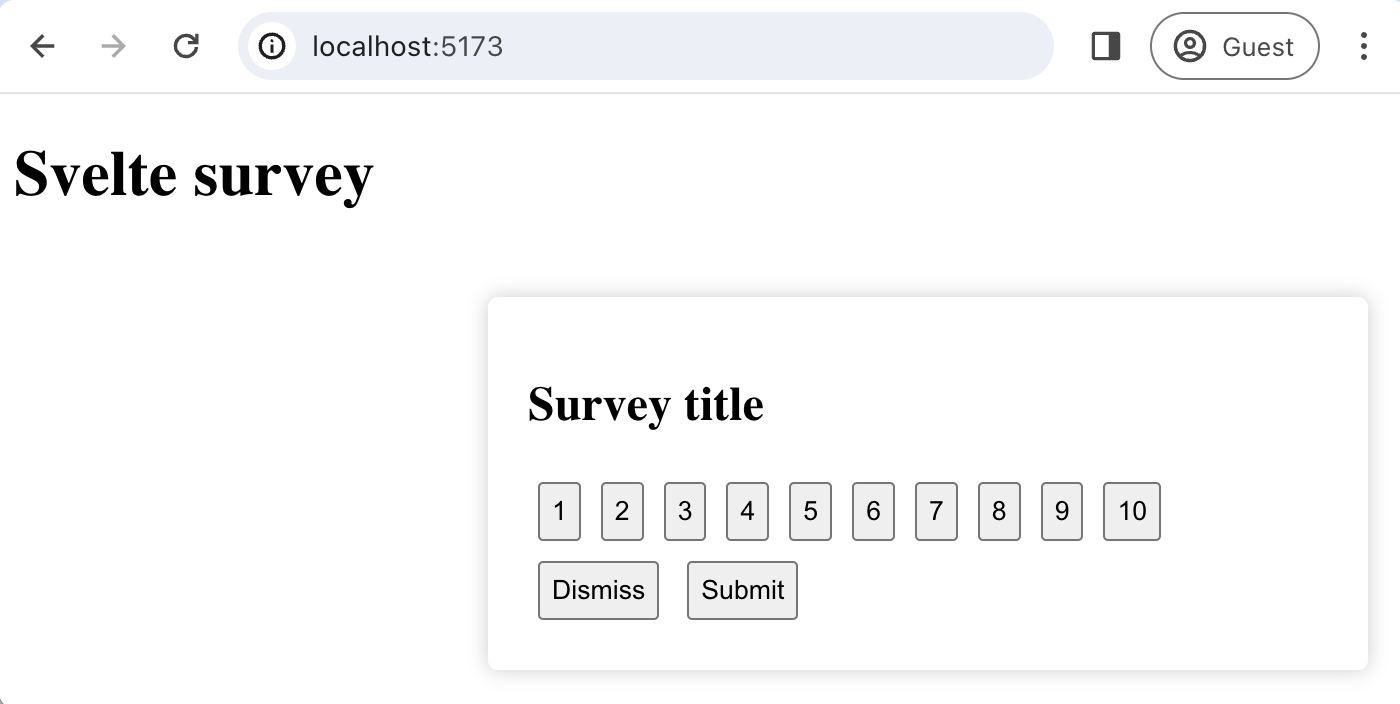
We've created a sample survey UI for this tutorial. To use it, create a new components folder in your src directory and then a new file CustomSurvey.svelte:
We want to make sure we don't show the survey again to users who have either submitted or dismissed it. We use localStorage to store this data and use it to check whether to show the survey or not.
PostHog is an all-in-one developer platform for building successful products. We provide product analytics, web analytics, session replay, error tracking, feature flags, experimentation, surveys, LLM analytics, data warehouse, a CDP, and an AI product assistant to help debug your code, ship features faster, and keep all your usage and customer data in one stack.